วันอาทิตย์ที่ 7 กรกฎาคม พ.ศ. 2556

What is Visual Basic?

Programming (การโปรแกรม) with Visual Basic 6.0

What is Visual Basic?

วิชวลเบสิกคืออะไร


by Teacher Phaitoon Yaemprasuan
picta55@gmail.com
occupatech@gmail.com
http://picta55.blogspot.com

Visual Basic is a tool that allows us to develop Windows (Graphic User Interface - GUI) applications. The applications have a familiar appearance to the user.
วิชวลเบสิกเป็นเครื่องมือของเราในการสร้างแอ็ปปลิเคชัน (โปรแกรมประยุกต์)ที่ทำงานภายใต้ระบบปฏิบัติการ Windowsซึ่งแอ็ปปลิเคชันที่ได้จะมีรูปแบบการติดต่อกับผู้ใช้เป็นกราฟิก (GUI : Graphic User Interface)

Visual Basic is event-driven, meaning code remains idle until it is called upon to respond to some event (e.g. mouse clicking, button pressing, menu selection, ...). Nothing happens until an event is detected. Once an event is detected, the code corresponding to that event (event procedure) is executed.

วิ ชวลเบสิก จะใช้ Event (เหตุการณ์) เป็นตัวขับเคลื่อนคำสั่ง(event-driven) หมายความว่า โค้ดของโปรแกรม จะยังไม่ทำอะไร (idle)จนกว่ามันจะถูกเรียกให้ตอบสนองต่อ event (เช่น การคลิกเมาส์ การกดปุ่ม การเลือกเมนู ฯลฯ) นั่นคือ จะไม่มีอะไรเกิดขึ้นจนกว่า eventจะถูกตรวจพบ เมื่อนั้นแหละ code ของโปรแกรมก็จะตอบสนองต่อ event นั้นๆ ในลักษณะของโปรแกรมย่อยๆ หรือโมดุล (event procedure)

How to program with Visual Basic?
จะโปรแกรมด้วยวิชวลเบสิกอย่างไร
Steps in Developing Application
ขั้นตอนการพัฒนาแอ็ปปลิเคชัน

There are three primary steps involved in building a Visual Basic application:
มีขั้นตอนหลักๆ 3 ขั้นตอน ที่เกี่ยวข้องกับการสร้างแอ็ปปลิเคชันด้วยวิชวลเบสิก
1. Draw the user interface ออกแบบส่วนติดต่อกับผู้ใช้
2. Assign propertiesto controls กำหนดคุณสมบัติให้กับคอนโทรล
3. Attach codeto controls ผูกติด code เข้ากับคอนโทรล


Stop Watch Application
โปรแกรมจับเวลา


1 At the "Start-up Menu" of our Windows Desktop, let's find where "Microsoft Visual Studio 6.0" is, and click on it. Then we can see some shortcuts to the applications of the software suite, and "Microsoft Visual Basic6.0" is one of them and it is also our "target software" right now, let's select it.
ณ สตาร์ทอัพเมนู ที่หน้าเดสต์ท็อปของระบบวินโดวส์ นักเรียนลองหาเมนู Microsoft Visual Studio 6.0 และคลิกเมาส์เลือก เรา จะเห็นช็อตคัตของแอปปลิเคชันต่างๆ ที่รวมกันอยู่ในซอฟต์แวร์ชุดนี้ รวมถึงMicrosoft Visual Basic6.0ซึ่งเป็นซอฟต์แวร์เป้าหมายที่เราจะใช้ในงานนี้แหละ เราก็เลือกซะนะ

At the "Start-up Menu of Windows", Find where the "Microsoft Visual Basic 6.0" is.
ณ สตาร์ทอัพเมนูของระบบวินโวส์ ให้หาว่า Microsoft Visual Basic 6.0 อยู่ไหน


2 We now at the main screen of Visual Basic 6.0 with its "New Project" window. Let's click on the "New" tab and select "Standard EXE" icon.
ตอน นี้เราก็มาอยู่ ณ หน้าจอหลักของ Visual Basic 6.0 ซึ่งมีหน้าต่าง New Project โชว์อยู่ ให้เราเลือกแท็บ New และสัญรูป Standard EXE
Select the "Standard EXE" icon ให้นักเรียนเลือกสัญรูป Standard EXE

3 Before we go on, let's consider the components of the toolbar of Visual Basic 6.0. Properties window, Run and Save project are what we have to focus on now.
ก่อนอื่น ขอให้เราลองพิจารณาแถบเครื่องมือของ Visual Basic 6.0 กันก่อน Properties window, Run, Save project เป็นอะไรที่เราจะต้องโฟกัสออนกันก่อนตอนนี้

Design View of Visual Basic 6.0 มุมมองในโหมดออกแบบของวิชวลเบสิก

4 Controls are the genius tools that can be attached by any codes that can control any events such as clicking mouse or pressing key. Now the "Command Button" and the "Label" are the controls that we are going to use.
คอนโทรล เป็นเครื่องมืออัจฉริยะ ที่สามารถจะนำเอาโค้ดคำสั่งมาผูกติด ทำให้สามารถควบคุมเหตุการณ์ได้ อาทิ การคลิกเมาส์ หรือการกดแป้นพิมพ์ ตอนนี้คอนโทรลที่เรากำลังจะใช้งานก็คือ Command Button และ Label

Controls of Visual Basic 6.0 คอนโทรลต่างๆ ของวิชวลเบสิก 6.0

5 Visual Basic programming begins with a form which has been named "Form1" by default. Visual Basic form simulates itself as platform which can receive many kinds of objects that created by the controls. Any object has its properties that has been shown in the properties window.
การ โปรแกรมด้วยภาษาวิชวลเบสิกนี้ จะเเริ่มจาก Formซึ่งโปรแกรมจะกำหนดชื่อให้ก่อนเลยว่า Form1 (เราสามารถเปลี่ยนชื่อได้) ฟอร์มของวิชวลเบสิกจะจำลองตัวมันเองเป็นเสมือนแพล็ตฟอร์ม ที่สามารถจะรองรับวัตถุหรืออ็อบเจ็กต์ที่สร้างจากคอนโทรล (ด้านซ้าย) และวัตถุนั้นมันจะมีคุณสมบัติหรือพร็อพเพอร์ตีส์ของตัวมันเอง โดยจะแสดงให้เราเห็นในหน้าต่างพร็อพเพอร์ตีส์ (ด้านขวา)

Form and Controls are variety kinds of object of Visual Basic that have their own properties.
Form และ Controls เป็นอ็อบเจ็กต์(วัตถุ) ที่หลากหลายของ Visual Basic ที่มี properties ของตนเอง
6 Here we go on creating a design job like the following picture.
- Using the "Command Button" control to draw the three sequence command buttons, Command1, Command2 and Command3.
- Using the "Label" control to draw the six sequence labels, Label1,
Label2, Label3, Label4, Label5 and Label6
ให้นักเรียนลงมือสร้างงานออกแบบ ตามรูปด้านล่างนี้เลยนะ
- โดยการใช้คอนโทรล Command Button วาดปุ่มคำสั่งขึ้นมาสามปุ่มตามลำดับ
- โดยการใช้คอนโทรล Label วาดอ็อบเจ็กต์ต่อเนื่องกัน รวม 6 เลเบิล

Form1 would have three command buttons and six labels now.
Form 1 ที่เราออกแบบนี้ก็จะมีปุ่มคำสั่ง (command button) 3 ปุ่ม และมีฉลาก (label) รวม 6 ฉลาก


7 Click on "Form1", we can see its properties, rename it with "frmStopWatch" (frm is a pefix which comes from "form"). And change its caption to "Stop Watch Application".
คลิ กที่อ็อบเจ็กต์ Form1 เราจะเห็น properties ของมันอยู่ทางด้านขวา ให้เราปรับเปลี่ยนชื่อ (name) ของมันใหม่เป็น "frmStopWatch" (frmเป็นคำนำหน้าชื่อ มาจาก form นั่นเอง) และปรับเปลี่ยน Caption (คำอธิบายอ็อบเจ็กต์) ให้เป็น "Stop Watch Application"

Form1 Properties Configurations การตั้งค่าคุณสมบัติของอ็อบเจ็กต์ Form1


8 Click on "Command1", yes we are about to specify the properties of this object. Rename it with "cmdStart" (cmd is a prefix which comes from "command button") and also refill its caption with "&Start Timing" (& is a prefix of the key letter that a user can press on this key together with the "alt" key instead of click on this command button).
คลิ กปุ่ม Command1 เพื่อเปลี่ยนคุณสมบัติ โดยให้ชื่อใหม่ว่า cmdStart (cmdเป็นคำนำหน้า มาจาก Command Button) และเปลี่ยน Caption ให้เป็น "&Start Timing" (& นำหน้าตัวอักษรสำคัญที่จะบอกผู้ใช้ให้รู้ว่า เขาสามารถกดคีย์นี้ร่วมกับคีย์"alt"ที่คีย์บอร์ด เพื่อใช้งาน command button แทนการคลิกเมาส์ได้).


Change the properties of the command button : name and caption
ให้นักเรียนเปลี่ยนชื่อ และแค็ปชันของปุ่มคำสั่ง

9 Do it the same way as the previous step. ทำเหมือนขั้นตอนที่แล้ว
Change the properties of the command button : name and caption


10 Do it the same way as the previous step.ทำเหมือนขั้นตอนที่แล้ว

Change the properties of the command button : name and caption


11 Change only the captions of Label1, Label2 and Label3 according to the following picture. ให้ เปลี่ยนเฉพาะ Caption ของทั้งสาม Labels เท่านั้น ไม่ต้องเปลี่ยนชื่อ(เนื่องจากเป็นแค่ป้ายกำกับเท่านั้น ไม่ได้เกี่ยวข้องกับการกำหนดโค้ดโปรแกรม)

Change the properties of the three labels : captions เปลี่ยนแค่แค็ปชันของสามเลเบิลแรก

12 Change the properties of the other last three labels, "Label4", "Label5" and "Label6" by renaming them to "lblStart", "lblEnd" and "lblElapsed" and erase their captions until they are blank.
เปลี่ยน properties ของ Label4, Label5, Label6 โดยเปลี่ยนชื่อเป็น lblStart, lblEnd, lblElapsed และลบ captions ของทั้งสามเลเบิลออกจนว่างเปล่าทั้งหมด

Change the properties of Label4, Label5 and Label6 according to the picture.
เปลี่ยนชื่อของสามเลเบิลท้าย และเคลียร์แค็ปชันให้ว่าง (blank)
13 Now we have just already designed and configured all of related objects, the next step of us is coding our program. Let's click on the menu-bar at the "View" command tab, then select the "Code" sub-command, the view-code window will show up. Yes, we are going to enter our source codes of our application here.
มา ถึงตอนนี้ เราก็ได้ทำการออกแบบ และกำหนดคุณสมบัติต่างๆ ให้กับอ็อบเจ็กต์ต่างๆ ที่เกี่ยวข้องไปเรียบร้อยแล้ว ขั้นตอนต่อไปของเราก็คือ การใส่โค้ดให้กับโปรแกรมของเรา ให้นักเรียนคลิกไปที่แท็บคำสั่ง View ของแถบเมนู จากนั้นให้เลือกคำสั่งย่อย Code หน้าต่างโค้ดก็จะปรากฏขึ้น ใช่เลย เราจะป้อนซอร์สโค้ดโปรแกรมของเราตรงนี้แหละ

Click on the "View" command at the menu bar, then select "Code" subcommand
14 The first set of source codes is about the declarations. There will be the "(General)" at the left-top of the view-code window and the "(Declarations)" at the right-top. We have to type four lines of our following source codes.
ซอร์สโค้ดกลุ่มแรก เป็นโค้ดที่เกี่ยวข้องกับการประกาศตัวแปร นักเรียนจะเห็นว่ามี (General) อยู่ที่หัวข้อด้านซ้าย และ (Declarations) อยู่ที่หัวข้อด้านขวา
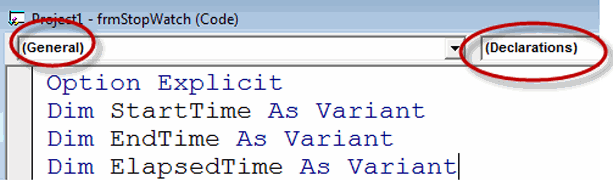
1st Line is about the General Declaration เป็นคำประกาศทั่วไป
2nd Line is the Declaration of variable "StartTime" ประกาศตัวแปรเพื่อรับค่าเวลาเริ่มต้น
3rd Line is
the Declaration of variable "EndTime" ประกาศตัวแปรเพื่อรับค่าเวลาที่หยุด
4th Line is the Declaration of variable "ElapsedTime"
ประกาศตัวแปรเพื่อรับค่าเวลาที่ใช้ไป
15 This step is about attaching our source code to a control object. The "cmdStart" is a command button we are going to attach the source code. Let's double click on this command button, yes, this action could bring us to a module or subprogram that could be driven by an event, _click ( ), that means this subprogram could work when this command button was clicked on.
ขั้น ตอนนี้ จะเป็นการผูกซอร์สโค้ดโปรแกรมของเราไว้กับปุ่มคำสั่ง cmdStart ให้นักเรียนดับเบิลคลิกที่ปุ่มคำสั่งนี้ (เมื่อเราอยู่ในมุมมอง Object) จากนั้นจะพาเราเข้าสู่ห้วงของโมดุลหรือโปรแกรมย่อย ซึ่งโปรแกรมย่อยหรือโมดลที่ว่านี้ จะถูกขับเคลื่อนโดยเหตุการณ์(event-driven) ซึ่ง ณ ที่นี้ก็คือ " _click ( )" การคลิกเมาส์ของผู้ใช้โปรแกรมนั่นเอง
What is about this source code? It begins with assigning the recent time value (Now) to the variable "StartTime". Then the method "Caption" stipulates that the label "lblStart" can show up data from the variable "startTime" with the "hh:mm:ss:" format.
ซอร์ส โค้ดนี้มันคืออะไรหรือ? โค้ดจะเริ่มจากการกำหนดให้ตัวแปร StartTimeเอาค่า Now คือเวลาปัจจุบันไปเก็บไว้ ต่อจากนั้นโค้ดก็จะมีวิธีการ(Method) ที่ชื่อว่า Caption เป็นตัวกำหนดรูปแบบการแสดงค่าของเวลา โดยเอาค่าที่เก็บไว้ในตัวแปร StartTime นั้นมาแสดงผลเวลาในเลเบิล lblStart

Attach code to the command button "cmdStart"
ผูกโค้ดเข้ากับปุ่มคำสั่ง "cmdStart"

16 Thisstep is similar to the previous but it turns to the "cmdEnd" command button. But it creates the expression which assigns the variable "ElapsedTime" with the difference of the variable "EndTine" and the variable "StartTine".
ใน ขั้นตอนนี้ ก็คล้ายกับขั้นตอนที่ผ่านมา แต่จะมีการสร้างนิพจน์คำนวณค่าส่วนต่างของเวลา ระหว่่างตัวแปร EndTimeและตัวแปร StartTime และนำไปเก็บไว้ในตัวแปร ElapsedTime

Attach code to the command button "cmdEnd"
ผูกโค้ดเข้ากับปุ่มคำสั่ง "cmdEnd"

17 This is the end of application with the only amazing word "End"
Attach code to the command button "cmdExit"
ผูกโค้ดเข้ากับปุ่มคำสั่ง "cmdExit"


18 Congratulation to our tough project!. This is the output of our input and process. Yes, it is the "Stop Watch Application" of us.
ขอ แสดงความยินดีกับโครงงานสุดหินนะนักเรียน นี่คือผลที่ได้ จากการสร้างและป้อน ประมวลผล จนได้แอ็ปปลิเคชันนาฬิกาจับเวลา หน้าตาแบบนี้แหละน้า

Our Graphic User Interface Application : "Stop Watch"
แอ็ปปลิเคชันของเราที่มีรูปแบบการติดต่อกับผู้ใช้เป็นกราฟิก (GUI)
19 We have to make our project to an independent application. Click on the "File" command at the menubar then select the "Make..to..EXE" subcommand.
เรา ต้องทำให้โปรเจ็กต์ (โครงงาน) ของเราที่รันได้แล้วนี้ ให้กลายเป็นแอ็ปปลิเคชันอิสระที่สามารถรันได้เอง (โดยที่ไม่ต้องอาศัยVisual Basic) ทำได้โดยการคลิกคำสั่ง File ณ แถบเมนูคำสั่ง แล้วเลือกคำสั่งย่อย Make..to..EXE เท่านี้ก็เสร็จเรียบร้อย

Visul Basic 6.0 : Exercise แบบฝึกหัด วิชวลเบสิก 6.0

Visul Basic 6.0 : Exercise แบบฝึกหัด วิชวลเบสิก 6.0
Exercise 1


Calendar/Time Display


Teacher Phaitoon Yaemprasuan : occupatech@gmail.com
http://picta55.blogspot.com

1 Design a window application that displays the current month, day, and year. Also, display the current time, updating it every second (look into the Timer control). Make the window look something like a calendar page. Play with object properties to make it pretty.

ให้นักเรียนออกแบบหน้าต่างแอ็ปปลิเคชัน ที่แสดงเดือนปัจจุบัน วันที่ และปี และยังแสดงเวลา ณ ปัจจุบัน ที่จะอัปเดตทุกวิยาทีอีกด้วย (เหมือนกับนาฬิกาจับเวลา) หน้าต่างแอ็ปปลิเคชันนี้จะคล้ายเหมือนใบปฏิทิน และให้นักเรียนตกแต่งอ็อบเจ็กต์ต่างๆ ให้ดูดี


2 Configure the properties of the related objects like the followings.
ทำการตั้งค่าต่างๆ ให้กับอ็อบเจ็กต์ที่เกี่ยวข้อง เหมือนค่าที่กำหนดมาให้ตามนี้

Configuration 1


Configuration2


Configuration3


3 Attach the source codes to the objects. There is only the Timer "timDisplay" object that we have to attach our source codes to. Although there is no any variable declared, but we have to type the code "Option Explicit" at the General Declarations module.
ทำการผูกซอร์สโค้ด (รหัสโปรแกรม) เข้ากับอ็อบเจ็กต์ สำหรับงานนี้จะมีเพียงอ็อบเจ็กต์ไทเมอร์ ที่ชื่อ timDisplay เท่านั้น ที่เราจะต้องใส่โค้ดผูกไว้

Source codes that we have to type.

วันพฤหัสบดีที่ 27 มิถุนายน พ.ศ. 2556

รายชื่อ 2/6

Links 2/6
Number1 .Kanit Pitthayanurk -
Number2 .Kanachai Sompansatit
Number3. Komtad Tusaranont
Number4. Jakkrit Malithong
Number5. Jittakon Pukpun -
Number6. Napat Saingam
Number7. Jirasin Yuwachat
Number8. Nattanon Yudee
Number9. Naratorn Sawangsai
Number10. Bandit Boonsawang
Number11. Pakapol Ruengrit
Number12. Pakawat Ubonrat -
Number13. Pattarapon Penpoe -
Number14. Phattarawut Chomngam -
Number15. Pakpoom Khaidi -
Number16. Wongsakorn Jongsomjit
Number17. Suratchai Panutai -
Number18. Adisorn Bandasak -
Number19. Apisit Sapan
Number20. Kittika Chaichueai
Number21. Kuntida Namuang
Number22. Kaimuk Heebkaew
Number23. Chirawadee Srisanam
Number24. Chanikan Rodchienglam
Number25. Titirat Namkang
Number26. Nattakitta Srisukkul
Number27. Naruemon Chocksathaporn
Number28. Nunnapus Plailahan
Number29. Panisara Soowannarat
Number30. Piyanut Phatbok
Number31. Pornsiri Yuenyong -
Number32. Rapeeporn Santimalai
Number33. Wachirawan Chainobpawat
Number34. Warapon Nakwong
Number36. Warisa Khatsringam -
Number37. Wassana limsuwan
Number38. Wichitra Kerdlap
Number39. Sasinphat Soifahyanyoung
Number40. Siraporn Amonmanorom
Number41. Supatchaya Phosee
Number42. Saranporn Sawangsai
Number43. Sirikon Maneejarern
Number44. Sumalinee Maneewong
Number45. Hirunyika Kanjana
Number46. Araya Khunnarong
Number47. Oranan Keawpanlek

Internet Connection Problems ปัญหาการเชื่อมต่ออินเทอร์เน็ต

Internet Connection Problems ปัญหาการเชื่อมต่ออินเทอร์เน็ต
Sometimes the problems caused by unintentional human errors
บางทีนะ ปัญหาก็เกิดจากความผิดพลาดที่ไม่เจตนาของคนเราเองนี่แหละ


Sometimes Internet connection problem can be our frustration. Rather than pressing F5-key and trying to reload the website when we experience a problem, here are some ways we can troubleshoot the problem and identify the cause.
างครั้งปัญหาการเชื่อมต่ออินเทอร์เน็ตอาจกลายเป็นเรื่องความคับข้องใจเราได้เหมือนกัน การกดแป้น F5 และการโหลดเว็บไซต์ใหม่ ก็อาจจะไม่เพียงพอ แต่ถ้าเราพอจะมีประสบการณ์ในการแก้ปัญหาอยู่บ้าง ปัญหานี้ก็อาจจะคลี่คลายลงได้

Ensure we check the physical connections before getting too involved with troubleshooting. Someone could have accidentally kicked the router or modem’s power cable or pulled an Ethernet cable out of a socket, causing the problem.
ก่อนอื่น เราต้องแน่ใจก่อนนะว่า กายภาพของการเชื่อมต่อ (the physical connections) ได้แก่ อุปกรณ์ สายสัญญาณ จุดเชื่อมต่อต่างๆ จักต้องอยู่ในสภาพปกติ ไม่มีใครไปสะดุดสายจนหลุด หรือดึงสายต่างๆ ออก

# # #

Ping


Ping (wikipedia.org) is a computer network administration utility used to test the reach-ability of a host on an Internet Protocol (IP) network and to measure the round-trip time for messages sent from the originating host to a destination computer.
ping เป็นคำสั่งที่ใช้บริหารจัดการ (administration utility) ระบบเครือข่ายคอมพิวเตอร์ ใช้เพื่อตรวจสอบการเข้าถึงเครื่องคอมพิวเตอร์ที่มีตัวตนจริงหรือโฮสต์ (host) ของเครือข่ายที่ใช้อินเทอร์เน็ตโปรโตคอล เพื่อจะวัดเวลาของการสื่อสารไป-กลับ ระหว่างคอมพิวเตอร์ต้นทางและปลายทาง
The name comes from active sonar terminology which sends a pulse of sound and listens for the echo to detect objects underwater.
ชื่อนี้มีที่มาจากโซนาร์ sonar terminology ที่เรือดำน้ำใช้ส่งให้ไปกระทบวัตถุใต้น้ำ แล้วสะท้อนกลับมานั่นเอง

One of the first things to try when our connection doesn’t seem to be working properly is the ping command. Open a Command Prompt window from your "Start button" using the "cmd" command and type a command like ping google.com .

สิ่งแรกที่เราควรทำ เมื่อการเชื่อมต่ออินเทอร์เน็ตของเราไม่เวิร์ก ก็คือ การใช้คำสั่ง ping โดยอาจจะเปิดหน้าต่าง command prompt ด้วยคำสั่ง cmd ณ Start Button แล้วพิมพ์คำสั่ง เช่น ping google.com .

This command sends several packets to the address you specify.
We can see that everything is working fine.
There’s 0% packet loss and the time each packet takes is fairly low.

คำสั่ง ping จะส่ง packets (ข้อมูลในหน่วยวินาที) ไปยังเครื่องที่เป็นโฮสต์ปลายทาง
จากภาพ จะเห็นว่า คำสั่งทำงานได้ดี ไม่มีการสูญเสีย packet เลย คือ ส่งไป 4 ได้คืน 4
และใช้เวลาน้อย 13-25 (เฉลี่ย 18) มิลลิวินาที


# # #

Modem & Router Issues

Sometimes our modems or routers can cause the problem of Internet connection. A modem is a device that communicates with your Internet service provider (ISP), e.g. TOT, while the router shares the connection among all the computers and other networked devices in our home network. In my case (and also other students' cases ) , the modem and the router of mine is the same device, so it is called the "modem-router".
างครั้ง Modem หรือ Router ก็อาจจะเป็นปัญหาการเชื่อมต่ออินเทอร์เน็ตของเราก็ได้
Modem เป็นเครื่องมือในการสื่อสารกับผู้ให้บริการอินเทอร์เน็ต (Internet service provider : ISP) อาทิ TOT สำหรับ Router เป็นอุปกรณ์ที่ทำหน้าที่แชร์การเชื่อมต่อระหว่างคอมพิวเตอร์และอุปกรณ์ต่างๆ ในระบบโฮมเน็ตเวิร์ก กรณีของบ้านครูเอง (และบ้านนักเรียนกาญจนาฯ หลายคน) อุปกรณ์สองอย่างนี้จะเป็นตัวเดียวกัน มันเลยถูกเรียกว่า "modem-router"

Let's take a look at the modem-router. If green lights are flashing on it, that’s normal and indicates network traffic. If we see a steady, blinking orange light, that generally indicates the problem.
องดูสิว่า modem-router ของบ้านเรา มันมีไฟสัญญาณเป็นสีเขียวนิ่งๆ หรือเปล่า? ถ้าใช่ ก็แสดงว่า เครือข่ายโฮมเน็ตเวิร์กบ้านเราทำงานเป็นปกติดีไม่มีปัญหา แต่ถ้าเราเห็นไฟสัญญาณเป็นสีอำพันกระพริบๆ ก็หมายความว่า โฮมเน็ตเวิร์กมีปัญหาแล้ว


All Green Lights Mean Normality
สัญญาณไฟเขียวตลอดแบบนี้ แสดงว่า ทุกอย่างปกติดี


If the lights indicate that either devices are experiencing a problem, try unplugging them and plugging them back in. This is just like restarting our computer. If we still experience problems, we may need to perform a factory reset on your router (to see its manual).
ากไฟสัญญาณของ modem-router แสดงว่า มีปัญหา ขอให้เราลองดึงปลั๊กไฟของมันออก แล้วเสียบกลับเข้าไปใหม่ ทำแบบนี้ก็ทำนองเดียวกับการที่เรา Restart คอมพิวเตอร์ใหม่นั่นแหละ หากทำแล้วยังมีปัญหาอยู่ เราก็อาจจะต้องทำการรีเซ็ตอุปกรณ์นี้ใหม่ (ดูคู่มือก่อน) ให้กลับไปเป็นค่าที่ตั้งมาจากโรงงาน


# # #

Our Classroom102

What is about the problem when we are in the classroom? Because the IPaddress conflict can be occurred anytime, so any computer in the classroom102 can be kicked off easily by the gateway computer of the Media Center which we have to lean on.
ปัญหาการเชื่อมต่ออินเทอร์เน็ตในห้องเรียนเป็นแบบไหน? ก็เพราะปัญหารหัสไอพีของเครื่องขัดแย้งกัน (IPaddress conflict) สามารถเกิดขึ้นได้ตลอดเวลา ดังนั้นคอมพิวเตอร์ในห้องเรียน102 ก็มีสิทธิ์จะถูกดีดออกนอกระบบได้ไม่ยากจากเครื่องเกตเวย์ของศูนย์สื่อที่เราต้องพึ่งพาในการเชื่อมต่ออินเทอร์เน็ตนั่นเอง
Yes, we cannot connect to the Net directly but always request Internet sharing with the server computer of School Media Center through the local area network.
ใช่เลย เราไม่ และไม่อาจเชื่อมต่ออินเทอร์เน็ตโดยตรงได้ นอกจากต้องพึ่งพาเครื่องคอมพิวเตอร์แม่ข่ายของศูนย์สื่อของโรงเรียน (the server computer of School Media Center) ผ่านระบบเครือข่ายแลน

Folder and Printer Sharing การแชร์โฟลเดอร์/เครื่องพิมพ์

Folder and Printer Sharing การแชร์โฟลเดอร์/เครื่องพิมพ์


โดย occupatech@gmail.com

The Atmosphere of My 2003 Computer Class at 4th Floor of Building1.
They were energetic and very nice schoolkids I have ever experienced.

บรรยากาศห้องเรียนคอมพิวเตอร์ 2546 สมัยยังอยู่ชั้น 4 อาคาร 1
พวกเขาเป็นเด็กนักเรียนที่ขยันขันแข็ง ตั้งใจเรียน และเป็นเด็กดีมากที่สุดรุ่นหนึ่งเท่าที่ครูเคยเจอ


All of us use Windows7 as the operating software, and our computers are connected together within the workgroup of the LAN (local area network). So we should gain the benefit of its sharing capability. Here we go!
ตอนนี้พวกเราล้วนแล้วแต่ใช้ Windows7 เป็นซอฟต์แวร์ระบบปฏิบัติการ (ในห้องเรียน และที่บ้านด้วย) และเครื่องของพวกเราก็เชื่อมต่อกันเป็นเวิร์กกรุ๊ปในระบบแลน ดังนั้นเราก็น่าจะใช้ความสามารถในการแชร์ทรัพยากรระหว่างกันได้ ลองดูกัน

1. FOLDER SHARING
การแชร์โฟลเดอร์

Be sure we have to specify what folder that we want to share?
ต้องระบุโฟลเดอร์ที่ต้องการแชร์


"BOOKS" is the folder of us to be shared.
ฟลเดอร์ "BOOKS" คือโฟลเดอร์ที่เราอยากแชร์

Make a right clicking with the folder, the dialogue box appears. Select the "Sharing" tab and the "Advanced Sharing" button
คลิกขวาที่โฟลเดอร์ กรอบโต้ตอบจะปรากฏขึ้น เราก็เลือกแท็บ
"Sharing" และปุ่ม
"Advanced Sharing"


Now the folder has never been shared yet (Not Shared)
ตอนนี้โฟลเดอร์นี้มีสถานภาพไม่ได้ถูกแชร์ไว้

Properties window of the folder appears and we should select to share it with others. Now we can see the maximum number of users to simultaneously enter to the folder is 20. Then we can click on the "Permission" button.
จะปรากฏหน้าต่างพรอพเพอร์ตีส์ (คุณสมบัติ) ของโฟลเดอร์นี้ขึ้นมา และเราก็ต้องเลือกว่าจะแชร์กัน และจะเห็นว่า เพื่อนๆ จะเชื่อมต่อเข้ามาใช้โฟลเดอร์ของเราพร้อมกันได้เต็มที่ 20 เครื่อง แค่นั้น ต่อมาก็เลือกคลิกปุ่ม "Permission"

Tick the check-box, and we can change the share name or ignore it.
ติ๊กเลือกว่าจะแชร์ จะเปลี่ยน/หรือไม่เปลี่ยนชื่อที่จะแชร์ก็ได้

After clicking on the permission button, the Permissions window shows up, you can add any user e.g. "student" and you can change the permission type of the user.
หลังจากคลิกปุ่ม permission จะมีหน้าต่างโผล่มาให้เราปรับเปลี่ยนตามความต้องการ

We can add user/ specify his permission level.
เราสามารถเพิ่มยูสเซอร์ / ระบุระดับการอนุญาตใช้งานโฟลเดอร์ของเราแก่เขา

Finally click on the "Apply" button, the folder now has been shared.
เมื่อเราคลิกปุ่ม "Apply" โฟลเดอร์ของเราก็ได้รับการแบ่งปันให้ใช้ร่วมกันได้ในเครือข่ายแล้ว
Well, our folder has been shared.
Folder ของเราได้รับการแชร์กันใช้เรียบร้อยแล้ว

Sample Special
ตัวอย่าง


This is from my computer (Its hostname is "ALPHA00".), when I click on the "Network" (at the left pane of Windows7 "Computer explorer" ) some computer hostnames appears. Yes, I want to randomly select any hostname. If the target of mine is "KACHATUCH", yes I would make a double-click on it.
นี่เป็นคอมพิวเตอร์ของครูที่ห้องพักครู (โฮสต์เนมว่า ALPHA00) เมื่อครูคลิกเลือก Network (อยู่ตรงแถบซ้ายของหน้าต่าง Computer explorer ของ Windows7 ก็จะปรากฏโฮสต์เนมต่างๆ ในเครือข่าย แน่นอนว่า ครูก็คงต้องสุ่มเลือกเข้าไปใช้เครื่องใดสักเครื่อง ที่ครูเล็งไว้ก็คือเครื่องที่มีโฮสต์เนมว่า Kachatuch
My Target Hostname is "KACHATUCH"
เครื่องที่ครูเล็งไว้คือ โฮสต์เนมที่ชื่อว่า Kachatuch

The shared folders of the hostname will be appeared. Then we can do a random selection and we can find any other subfolders that we can select to use.
ตอนนี้ก็จะเห็นโฟลเดอร์ที่โฮสต์เนม Kachatuch เราก็คงต้องสุ่มเลือกโฟลเดอร์ แล้วเราก็จะเห็นโฟลเดอร์ย่อยๆ ที่เราสามารถจะเลือกเข้าไปใช้ได้
The Shared Folders of "Kachatuch" appears, any folder could be selected.
If any shared folder had been selected its subfolders would be revealed.

แชร์โฟลเดอร์ของโฮสต์เนม "Kachatuch" ก็จะปรากฏขึ้นมาให้เห็น เราสามารถเลือกโฟลเดอร์ไดก็ได้
ถ้าแชร์โฟลเดอร์ใดถูกเลือกเข้าใช้ โฟลเดอร์ย่อยๆ ก็จะได้รับการเปิดตัวออกมาให้เห็นฝเลือกใช้ได้


2. PRINTER SHARING
การแชร์พรินเตอร์


Click the "Start button" of Windows7 desktop, the pop-up menu appears, then select "Devices and Printers", the target printer of us will be appeared.
จากปุ่ม Start ของ Windows7 เราก็เลือก "Devices and Printers" ก็จะเจอพรินเตอร์ที่เราอยากจะแชร์กันใช้
Select the printer

Make a right click on the printer icon, the select menu will show up, then select "Printers properties" option. Then we can operate sharing easily.
คลิกขวาที่รูปพรินเตอร์ จะมีป็อปอัพเมนูโผล่ขึ้นมา ให้เราเลือก "Printers properties" ต่อจากนี้ เราก็คงจะปฏิบัติการแชร์พรินเตอร์ได้ไม่ยากแล้ว...
Select : Printer Properties

Click on the "Sharing tab", and we can rename the sharing printer.
เลือกแท็บ Sharing และสามารถเปลี่ยนชื่อพรินเตอร์ที่กำลังจะแชร์ได้ด้วย
Select the Sharing Tab

วันพฤหัสบดีที่ 20 มิถุนายน พ.ศ. 2556

Home Network

Home Network
โดย 7273rs.blogspot.com


What/How About Our Home Network is?


I have known from students of my computer classes that the Internet connection at their homes is of TOT provider. Yes, my internet service provider (ISP) is TOT too. What/how is my home network? The modem-router is the main device of the network because it plays many roles as of the followings : -
1) to simulate itself like a server computer
2) to act as a hub/switch of the wired connection
3) to be an access point sending packets of the wireless connection
4) to play as an ADSL modem connecting Internet
5) to be a router managing the how-to connect to other devices
รูทราบจากนักเรียนหลายคนที่เรียนวิชาคอมพิวเตอร์กับครูว่า ที่บ้านของพวกเขามีการเชื่อมต่ออินเทอร์เน็ตผ่านผู้ให้บริการอินเทอร์เน็ต ทศท.(TOT) ซึ่งที่บ้านครูก็ใช้บริการของ ทศท.เหมือนกัน แล้วระบบเครือข่ายที่บ้านเราจะเป็นแบบไหน? อุปกรณ์หลักก็คือ โมเด็ม-เราเตอร์ (modem-router) ซึ่งอุปกรณ์นี้จะทำหน้าที่หลายบทบาทด้วยกัน คือ
1) จำลองตัวเองเป็น server computer
2) เป็น hub/switch ของการเชื่อมต่อแบบใช้สาย
3) เป็น access point ทำหน้าที่ส่งแพ็คเก็ตส์ในระบบเครือข่ายไร้สาย
4) เป็น ADSL modem เชื่อมต่อ Internet
5) เป็น router บริหารจัดการเชื่อมต่อกับอุปกรณ์/คอมพิวเตอร์อื่นในเครือข่าย

Be sure, most our home network is hybrid. One is wired while another is wireless. Although home network is not complex, but its system is so smart and its Internet connection is so clever with ADSL technology. The superstar is a "modem-router", the genius device.
โฮมเน็ตเวิร์กที่บ้านส่วนใหญ่เป็นไฮบริด คือ ผสมกันทั้งแบบมีสาย (wired) และแบบไร้สาย (wireless) แม้ว่าระบบโฮมเน็ตเวิร์กอาจจะดูไม่ซับซ้อนอะไรมาก แต่ระบบเครือข่ายนี้ก็ไม่ไช่ธรรมดา การเชื่อมต่ออินเทอร์เน็ตก็ทำได้ดีด้วยเทคโนโลยี ADSL และแน่นอนว่า อุปกรณ์อัจฉริยะของระบบก็คือ"modem-router" นั่นเอง
The composition of any home network
(e.g. home internet connection of students)

UTP : Unshielded Twisted Pair cables are so common in any computer rooms e.g. classroom102 of our school. The UTP cable is caped with a connector which is called RJ-45. The RJ-45 connector will be inserted into the LAN port of any Ethernet card/router/switch/hub. (The RJ-11 connector of the phone line is smaller than RJ-45).
สายเคเบิลแบบยูทีพี (UTP) หรือสายคู่บิดเกลียวไม่หุ้มฉนวน (Unshielded Twisted Pair cables) จะพบได้ทั่วๆ ไปในห้องคอมพิวเตอร์ อาทิ ห้องเรียนคอมพ์102 ในโรงเรียนของเรา UTP จะถูกเข้าหัวด้วยหัวต่อ หรือคอนเน็กเตอร์ (Connector) ที่เรียกว่า RJ-45 ซึ่งหัวต่อนี้จะถูกเสียบไว้ที่ช่องเสียสายแลน หรือแลนพอร์ต (LAN port) เราเตอร์ สวิตช์ หรือฮับ (ขณะที่หัวต่อ RJ-11 ของสายสัญญาณโทรศัพท์จะมีลักษณะเหมือนกัน แต่มีขนาดเล็กกว่า)

What is about ADSL? (www.wikipedia.org) : It is "Asymmetric Digital Subscriber Line" technology. This is a data communications technology that enables faster data transmission over copper telephone lines than a conventional modem can provide. (Modem is a device that manages the joint communication between the phone and the computer.)
ADSL คืออะไร? (www.wikipedia.org สารนุกรมเสรี) อธิบายว่า "Asymmetric Digital Subscriber Line" technology. เป็นเทคโนโลยีโทรคมนาคมที่ทำให้การส่งข้อมูลผ่านสายโทรศัพท์ที่ปกติจะเป็นสายทองแดงนั้น ทำได้ดีมีประสิทธิภาพมากกว่า การใช้โมเด็มธรรมดา (Modem เป็นอุปกรณ์ที่จะทำหน้าที่บริหารจัดการสัญญาณจากโทรศัพท์และสัญญาณจาคอมพิวเตอร์ให้มาทำงานร่วมกันได้)


Another one I would like to refer to is "protocol". What is it? A protocol is a system of digital message formats and rules for exchanging those messages in or between computing systems and in telecommunications. And in our network we use the TCP/IP (comes from "Transmission Control Protocol and Internet Protocol). Now Thailand uses IPv4 protocol, but Thai government by Prime Minister Yingluck Shinawatra is going to change the Internet protocol of the country with another version, IPv6 protocol, which has more capacity and efficiency of transmission.
ละมีอีกเรื่องที่ครูอยากจะพูดถึงก็คือ "โปรโตคอล" มันคืออะไร? ถ้่าจะว่าไปนะ คำๆ นี้ มันเป็นภาษาที่ใช้ในวงการฑูตเขา คือกรณีที่ต้องมีการติดต่อสื่อสารกันระหว่างพวกฑูตของประเทศต่างๆ เขาก็จะต้องมีวิธีการ มาตรฐาน ระบบระเบียบต่างๆ ที่เข้าใจตรงกัน และเขาเรียกว่า protocol ทางวงการคอมพิวเตอร์ก็ไปขอยืมคำศัพท์ของเขามาใช้บ้าง โปรโตคอลของเครือข่ายคอมพิวเตอร์ (www.wikipedia.org) ก็คือ ระบบของรูปแบบข่าว สารเชิงดิจิตอลและกติกา ของการแลกเปลี่ยนกันระหว่างระบบคอมพิวเตอร์และโทรคมนาคม ซึ่งทุกวันนี้ โปรโตคอลที่เราใช้ในเครือข่ายนั้น คือ ทีซีพี/ไอพี (โปรโตคอลควบคุมการส่งข้อมูล และอินเทอร์เน็ตโปรโตคอล) และ ตอน นี้รัฐบาลไทย ภายใต้การนำของ ฯพณฯ ยิ่งลักษณ์ ชินวัตร ก็กำลังปรับเปลี่ยนอินเทอร์เน็ตโปรโตคอลของประเทศเรา ที่ขณะนี้เป็นเวอร์ชัน 4 ให้เป็นเวอร์ชั่น 6 เพื่อรองรับปริมาณของเครือข่าย และประสิทธิภาพที่ขยายเพิ่มขึ้น

Because each computer of the network has its own unique "IP-address", what/how is it? As I have just told you (see, first paragraph) that the modem-router simulates itself like a server computer, sure its IPaddress must be static, e.g. (IPv4) 192.168.2.1, 192.168.1.1, 192.168.0.1 etc. , on the other hand it lets the other connected computer the dynamic/automatic IPaddress. Yes, the modem-router of the home network is the gateway to Internet.

พราะเครื่องคอมพิวเตอร์แต่ฃะเครื่องในระบบเครือข่าย ต่างก็มีรหัสไอพี (IP-address) เฉพาะตัวไม่ซ้ำกัน เหตุไฉน/อย่างไร? ก็ตามที่ึรูได้กล่าวไปแล้วว่า modem-router จะจำลองตัวมันเองเป็นเสมือน server computer แน่นอนว่า ตัวมันเองก็จะต้องมีรหัสไอพีที่แน่นอนตายตัว อาทิ (ถ้าดูตาม IPv4) 192.168.2.1, 192.168.1.1, 192.168.0.1 ประมาณนี้ ในอีกทางหนึ่งมันก็ยอมให้เครื่องอื่นๆ ที่เป็นลูกข่าย/ลูกน้อง ที่มาเชื่อม่อเครือข่ายกับมันมีรหัสไอพีแบบอัตโนมัติ ส่วนจะเป็นอะไรนั้นก็แล้วแต่มันจะจัดให้ แต่ก็มักจะเป็นรหัสที่ต่อเนื่องกับตัวมันนั่นแหละ อาทิ 192.168.2.3 เป็นต้น เพราะตัวมันเองเป็นเครื่องเกตเวย์
Teacher's home network PC/Modem-router IPaddress Configuration
I use the "IPCONFIG" command to see what/how my home PC/modem-router IPaddress configuration by typing the command at the command line of Windows and what I knows are the followings

... 192.168.2.1 is the IPaddress (IPv4) of my modem-router, Belkin brand.
... 192.168.2.3 is the IPaddress (IPv4) of my PC, configured by the modem-rounter

รูได้ใช้คำสั่ง ณ คอมมานด์ไลน์ของ Windows7 ว่า IPCONFIG เพื่อต้องการทราบว่า รหัสไอพีของเครื่องคอมพิวเตอร์ และโมเด็ม-เราเตอร์ที่บ้่านมีค่าอะไร ก็พบว่า
... 192.168.2.1 เป็นรหัส IPaddress (IPv4) ของ modem-router, ยี่ห้อ Belkin
... 192.168.2.3 เป็นรหัส IPaddress (IPv4) ของเครื่องคอมพิวเตอร์ ที่จัดให้/กำหนดให้โดย modem-rounter

Yes, each other computer in the network can never be configured with a static IPaddress because the modem-router as the server PC/the gateway PC cannot share Internet connection anyway.
ใช่เลย คอมพิวเตอร์เครื่องอื่นๆ ในระบบโฮมเน็ตเวิร์ก มิอาจมีค่ารหัสไอพีแบบคงตัวได้ เพราะมันจะต้องถูกตั้งเป็นอัตโนมัติไว้ให้ modem-router ในฐานะเป็น server PC/the gateway PC เป็นตัวกำหนด ถ้าไม่เช่นนั้น มันจะไม่สามารถแชร์การเชื่อมต่ออินเทอร์เน็ตมาให้ได้นั่นเอง